Get the app
Install Flare before you leave home if you can, because venue Wi-Fi can be slow. Get Flare.
Open it at the venue and tap Light my flare
Choose Dating, Friends or Work at the top of the screen if you’re asked, then tap Light my flare. If you aren’t at an event yet, this opens the scanner. Allow camera access so Flare can read the code. Nothing from the camera is stored or sent.
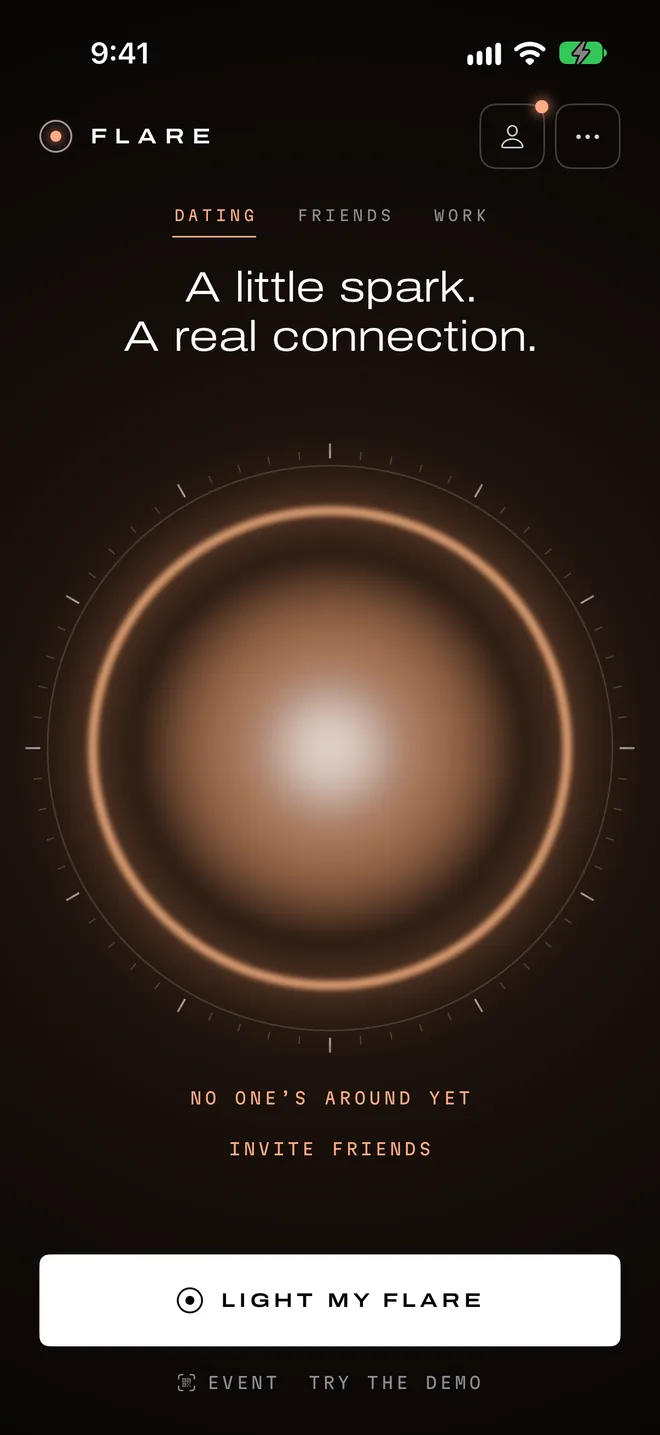
Scan the code
Point your phone at the code your host is showing, or type the six digits they read out. The code changes every five minutes and only works while the event is live.
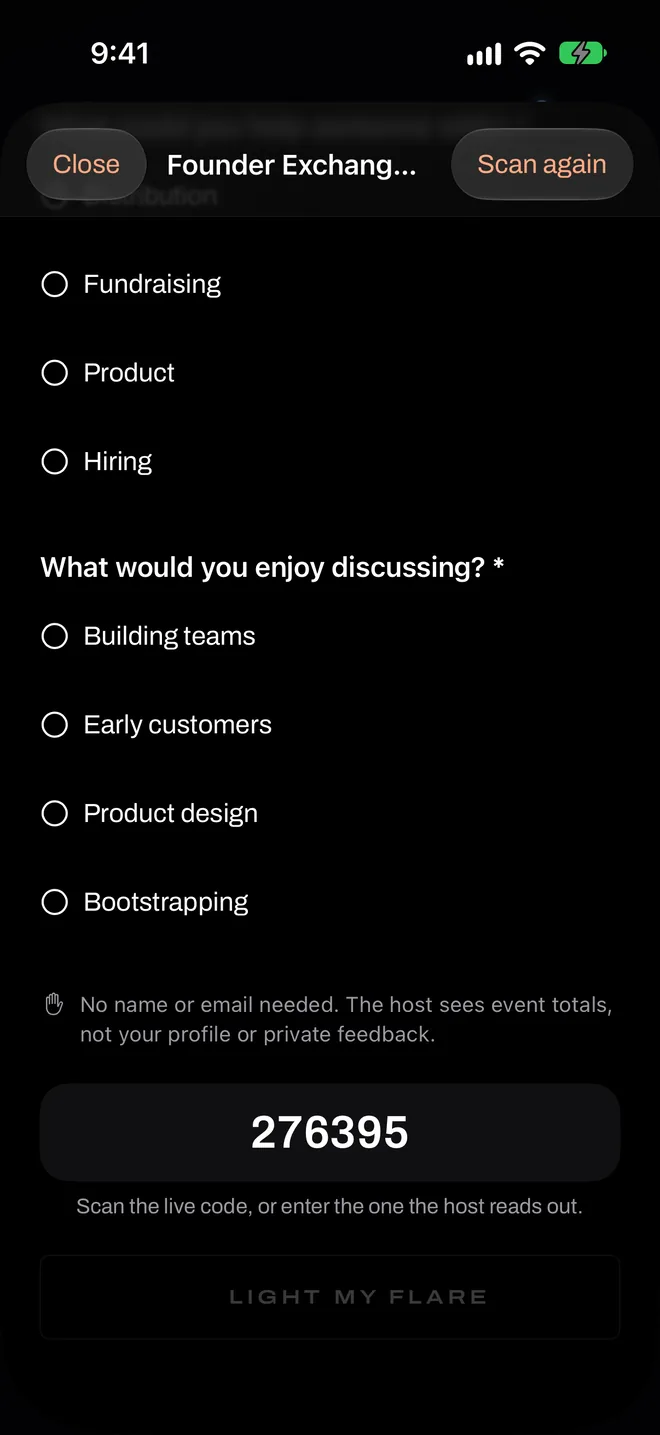
Answer the host’s questions
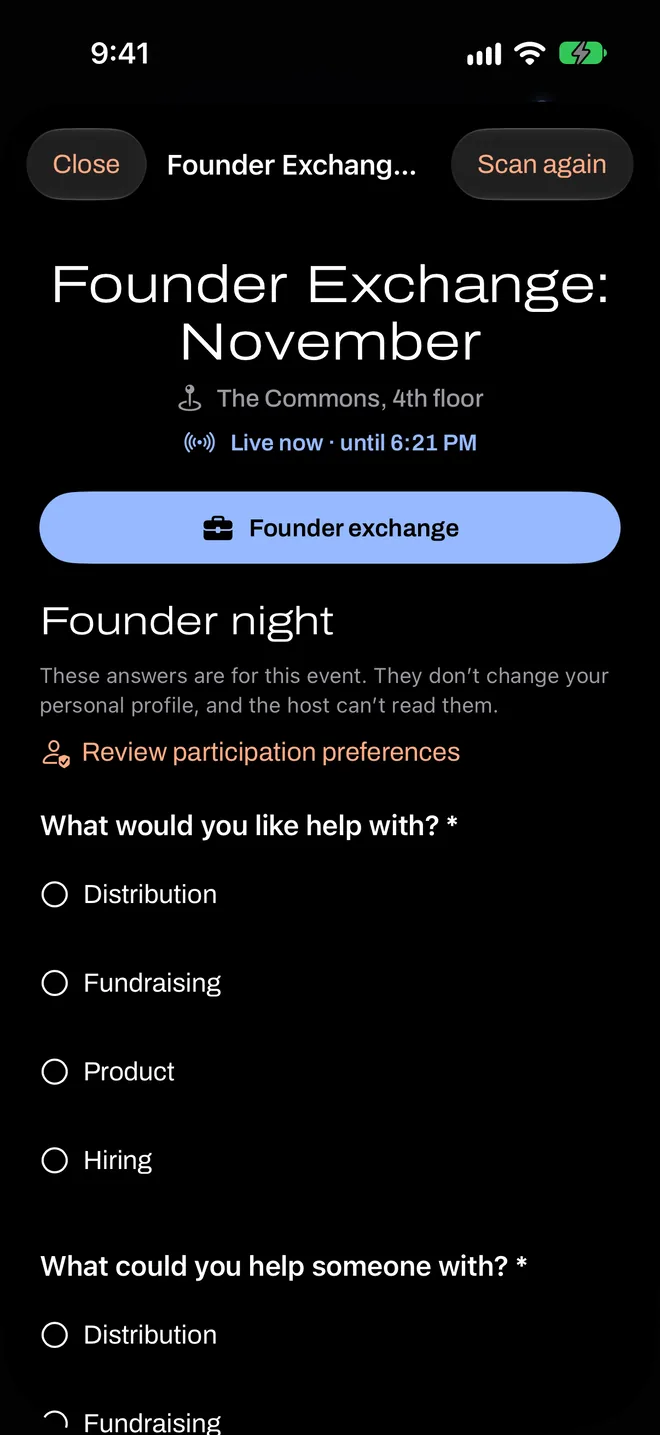
You’ll see the event’s name and a few questions from your host. The answers are for this event only. They don’t change your personal profile, and neither the host nor anyone you meet can read them.
Some events use Flare’s standard questions instead, and you’ll be asked to finish your profile. At dating events you’ll also review who you’d like to meet. About your profile.
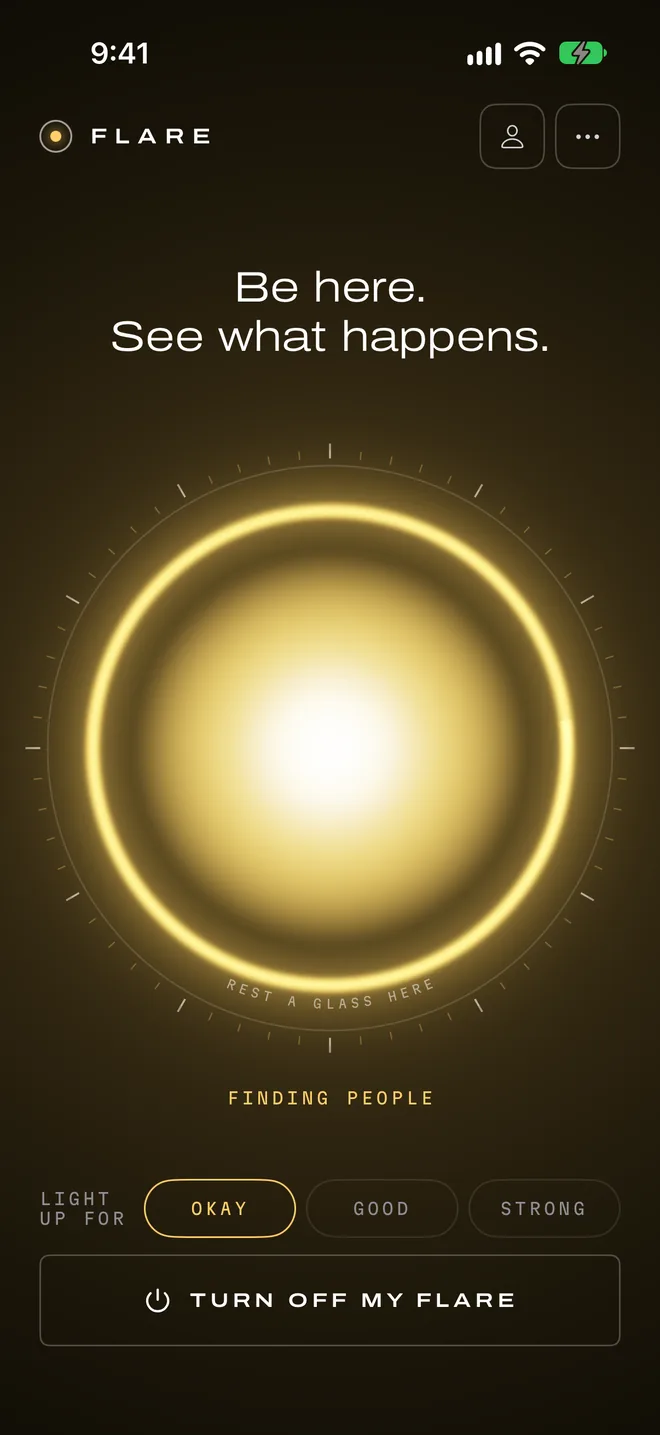
Light your flare
Tap Light my flare. You’re in. Your light is now searching the room. You can keep your phone out, or put it away with notifications on, and Flare will tell you when your light finds someone. You can also choose how good a match has to be. What happens next.
Flare uses your answers to find you a good introduction. To rank them, it sends the answers without your name to an AI model run by Cloudflare. You can read exactly what happens to them.