An iPhone on iOS 18 or later, and a few friends with iPhones to try it with. No account, name or email is needed.
Open the host area
Open Flare and tap the ••• button at the top right of the home screen, then choose Host an event.
You’re now in the host area, with your events and saved templates in one place. Hosting is tied to this iPhone’s secure identity, so there’s nothing to sign up for.
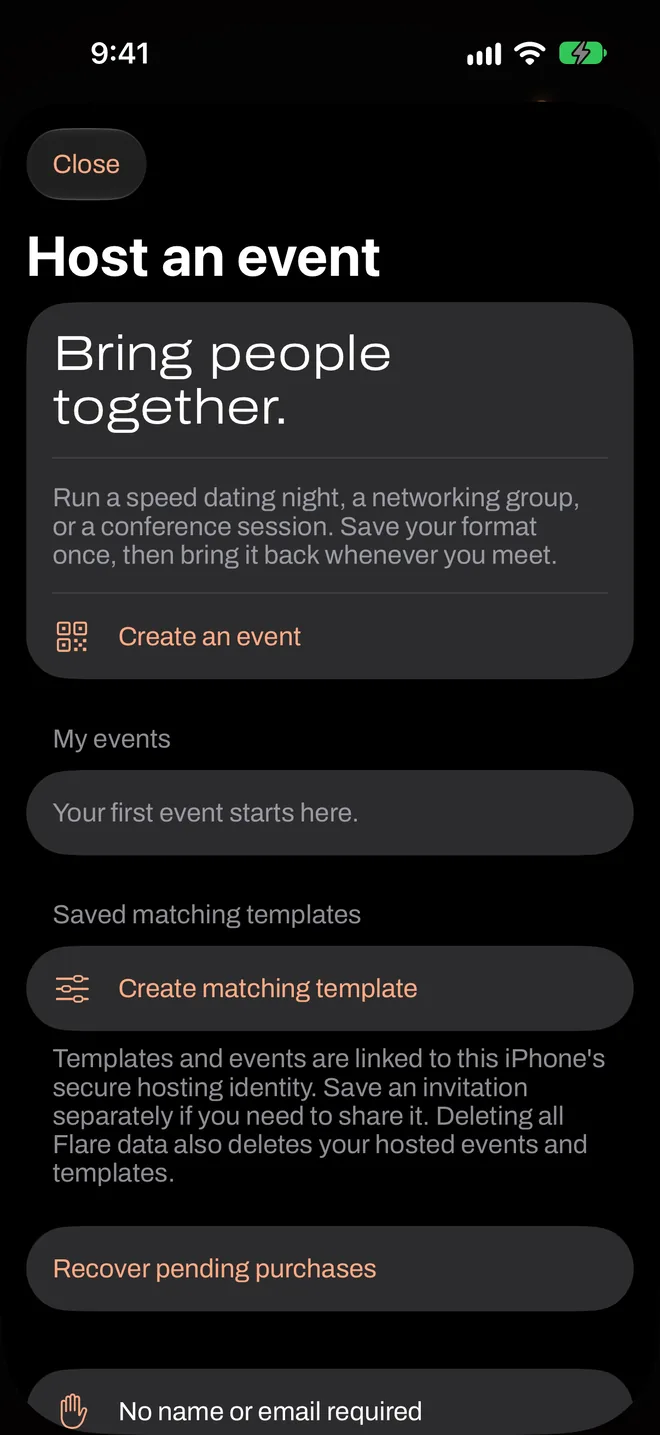
Create a matching template
Tap Create matching template. Give it a name only you see, like “Founder night”, and a category your guests will see, like “Founder exchange”.
Under Broad context, choose Dating, Friends or Work. This sets the protections that always apply. Then tap the starter for that context to get a ready-made set of questions, or Start with a blank questionnaire.
You can skip templates altogether. If you do, guests answer Flare’s standard questions for that context.
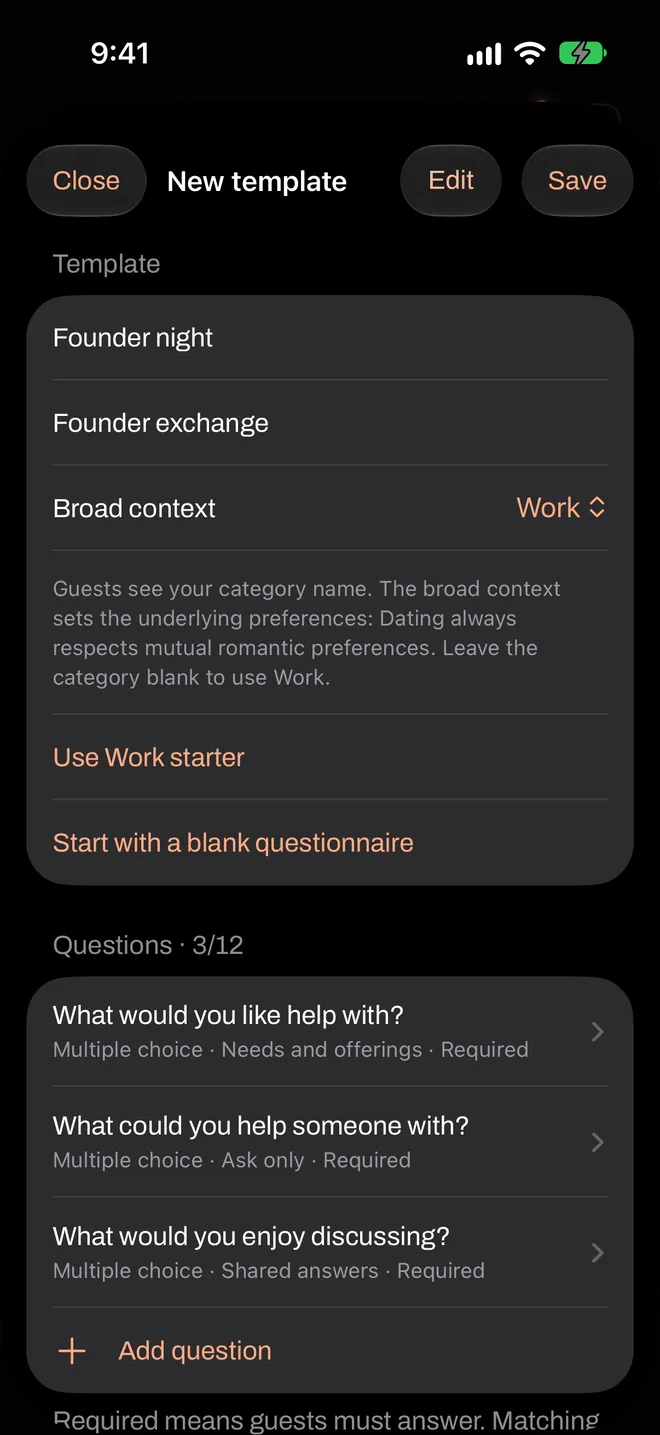
Check your questions
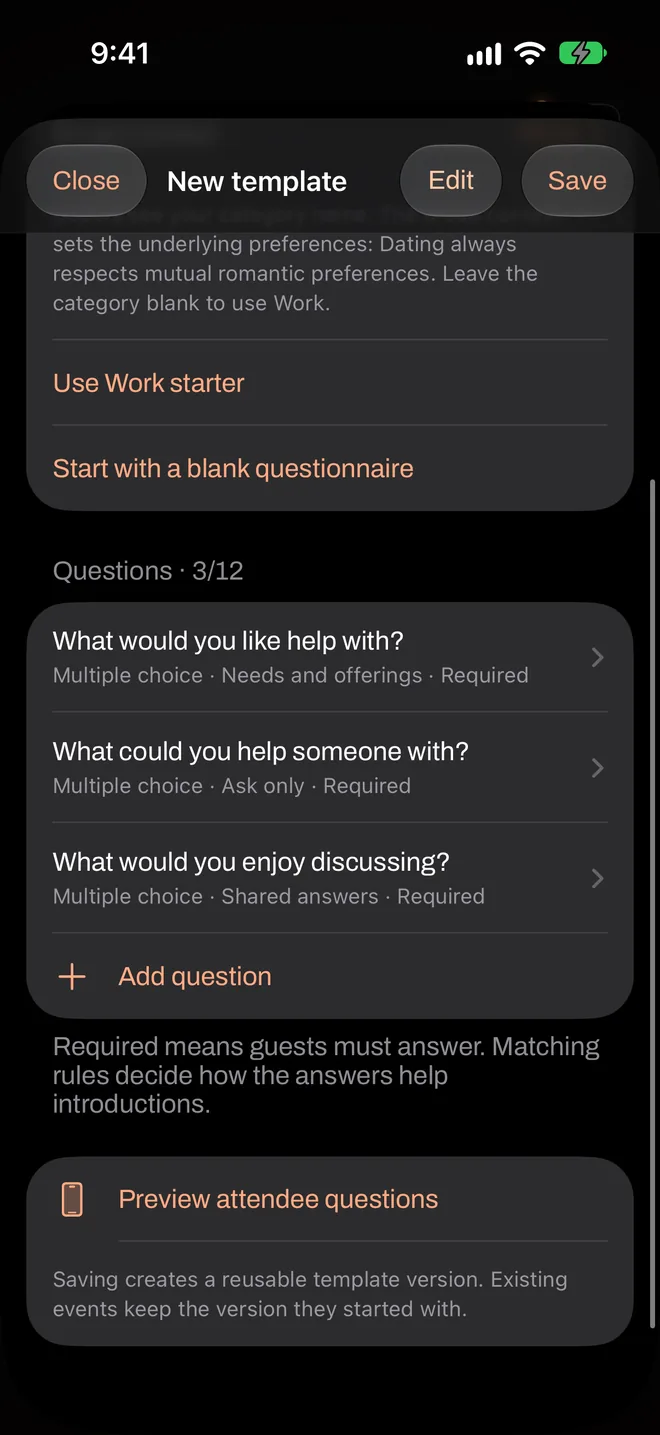
You can have up to 12 questions. Tap one to edit its wording, answer type and answer choices, whether it’s required, and how the answer should help introductions.
Preview attendee questions shows exactly what guests will see. Tap Save when it looks right. More on building templates.
Create the event
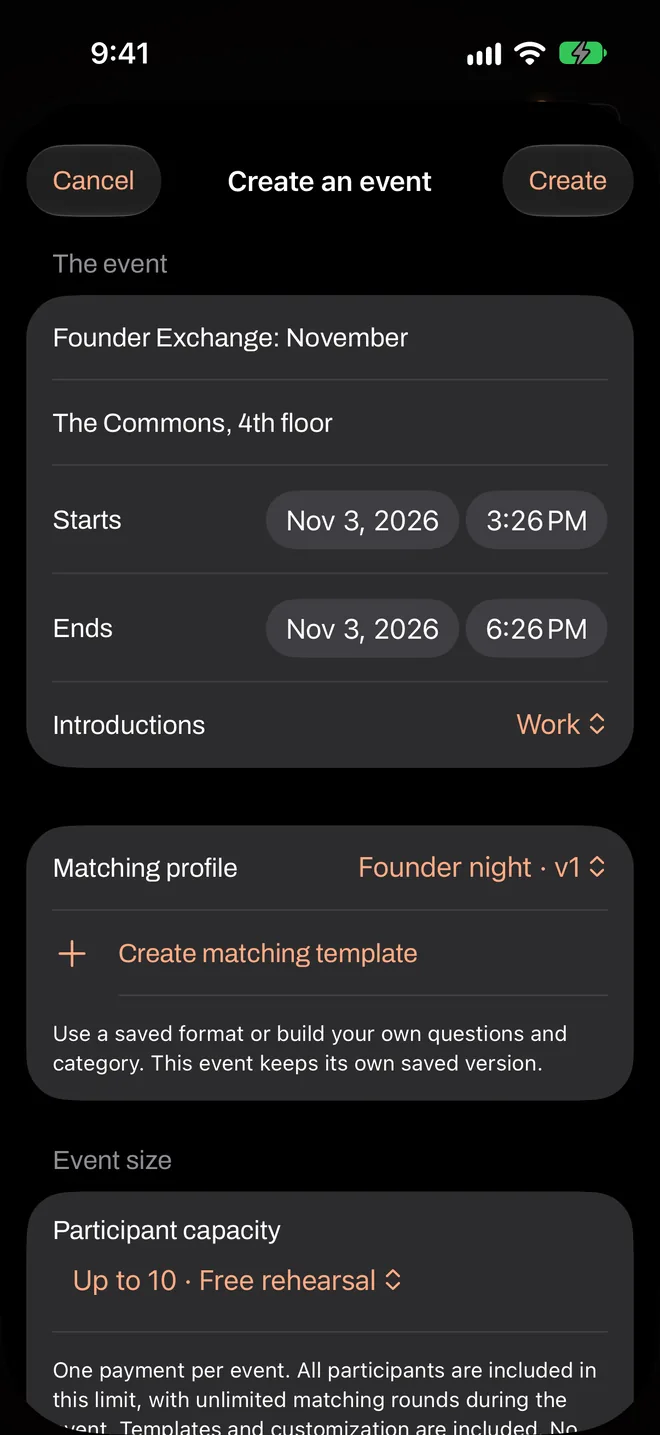
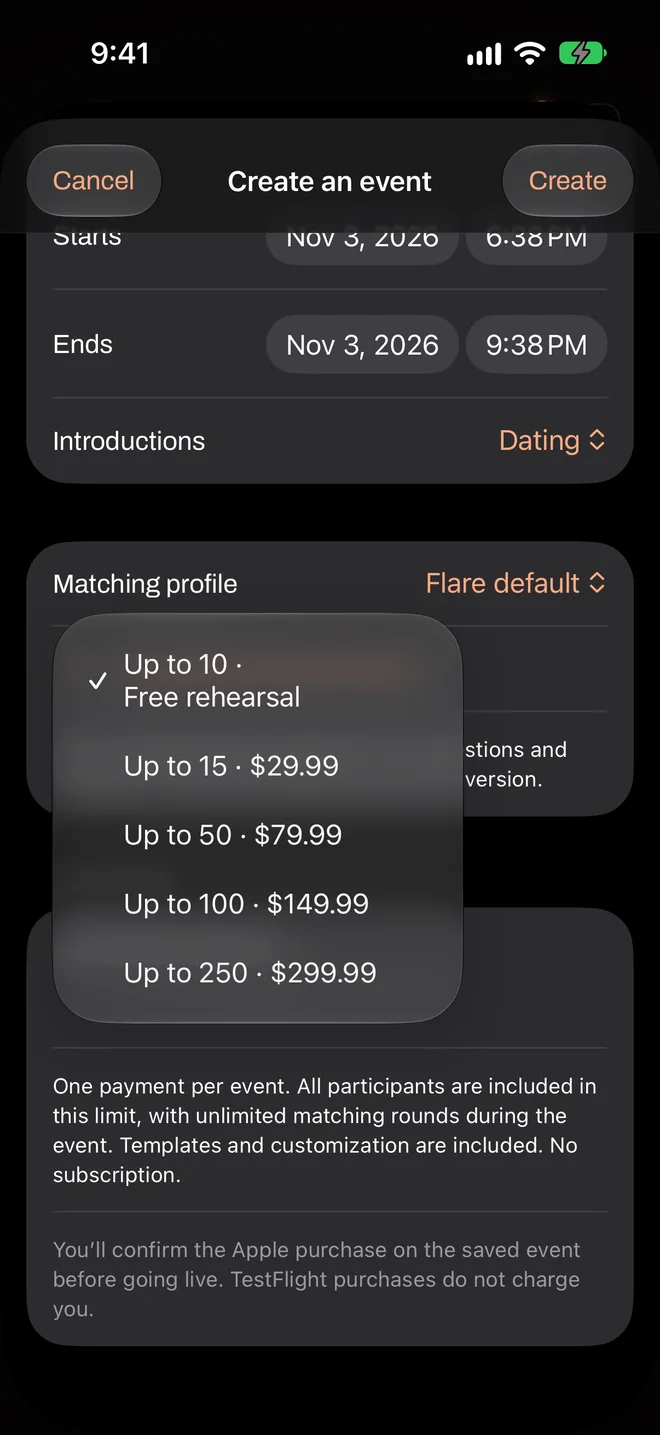
Back in the host area, tap Create an event. Fill in the event name, venue, start and end times.
Under Introductions, choose the same context as your template. Under Matching profile, choose your template. The event keeps its own copy of those questions, so later template edits won’t change it.
Choose a size
Under Event size, open Participant capacity. Up to 10 is a free rehearsal. Bigger sizes are a single payment for this one event, starting at $29.99. Tap Create. How to choose a size.
Buy the event, if it’s a paid size
Your event is saved at this point. For a paid size, tap Buy event on the event screen and confirm with Apple. You pay before going live, and the app shows your local price first.
If a purchase gets interrupted, Recover pending purchases in the host area picks it back up without charging you again.
Go live
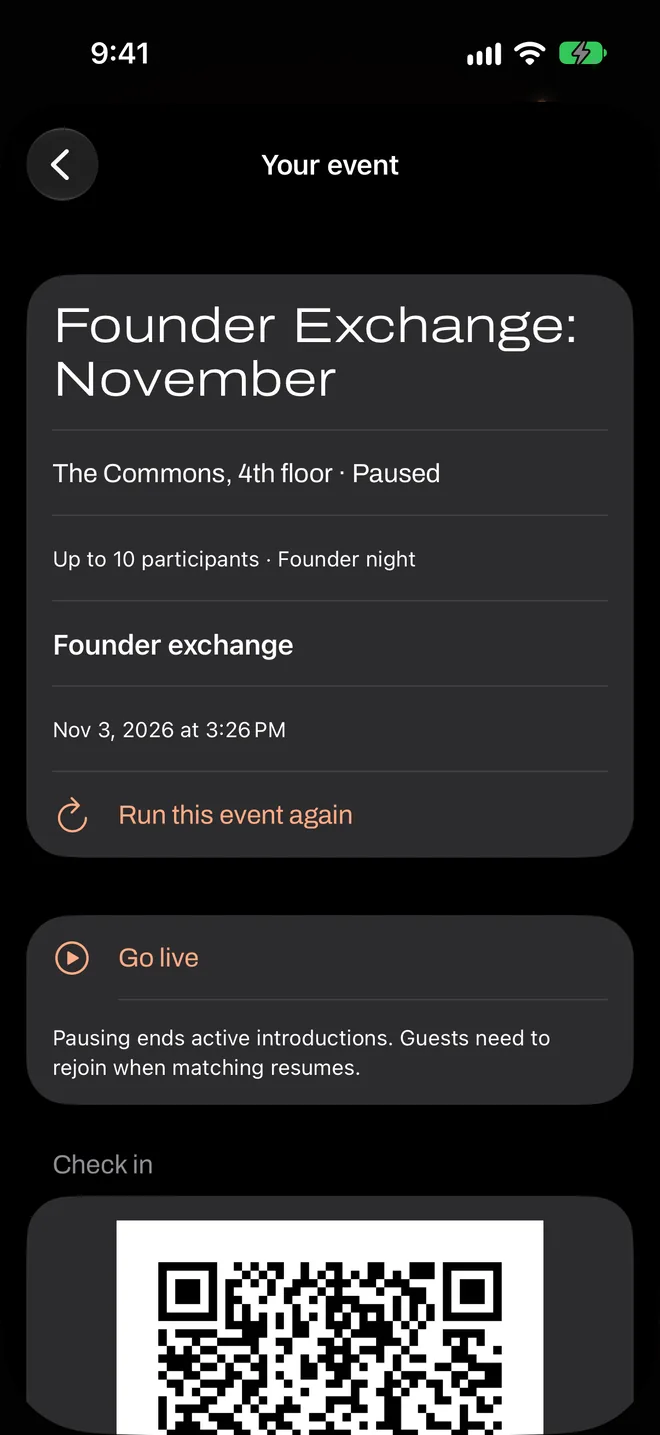
Guests can’t join until you tap Go live. Do this when you’re ready to admit people, usually when the doors open. Saving a template or an event doesn’t start anything.
Show the code
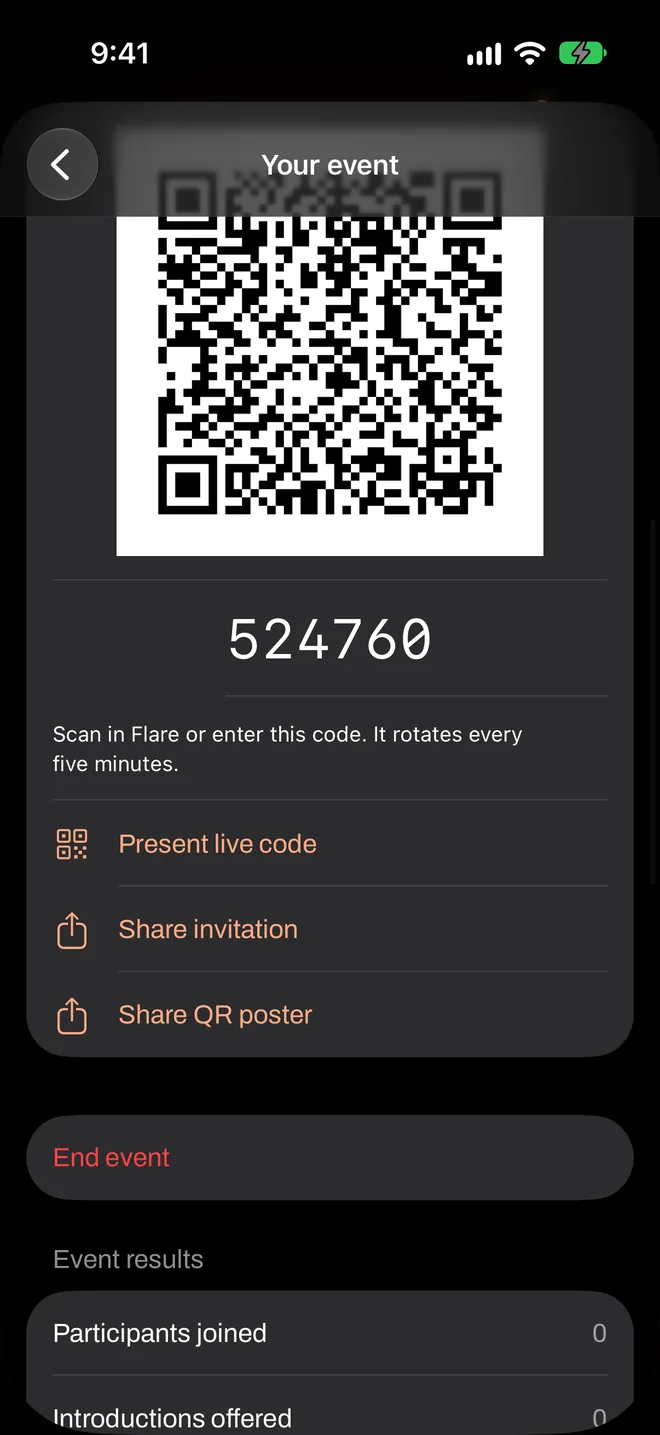
Under Check in you’ll see a QR code and a six-digit code. Both change every five minutes, so someone who photographed the code last week can’t join from home.
Present live code fills the screen. You can mirror it to a TV with AirPlay, stand it by the door or read the six digits out. How to set up the door.
Run the room
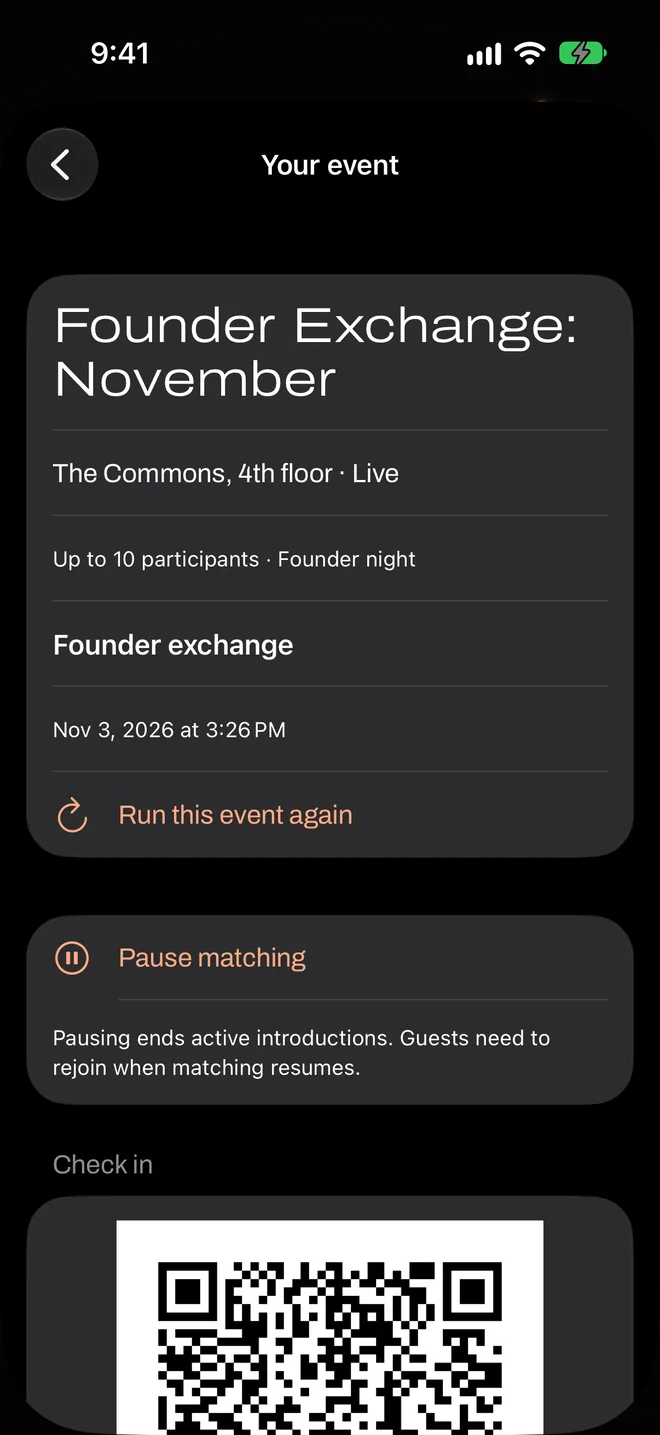
From here the night mostly runs itself. Keep the event screen handy so you can see any safety reports. The event keeps running if you switch apps or lock your phone. What to do during the event.
End the event and read the results
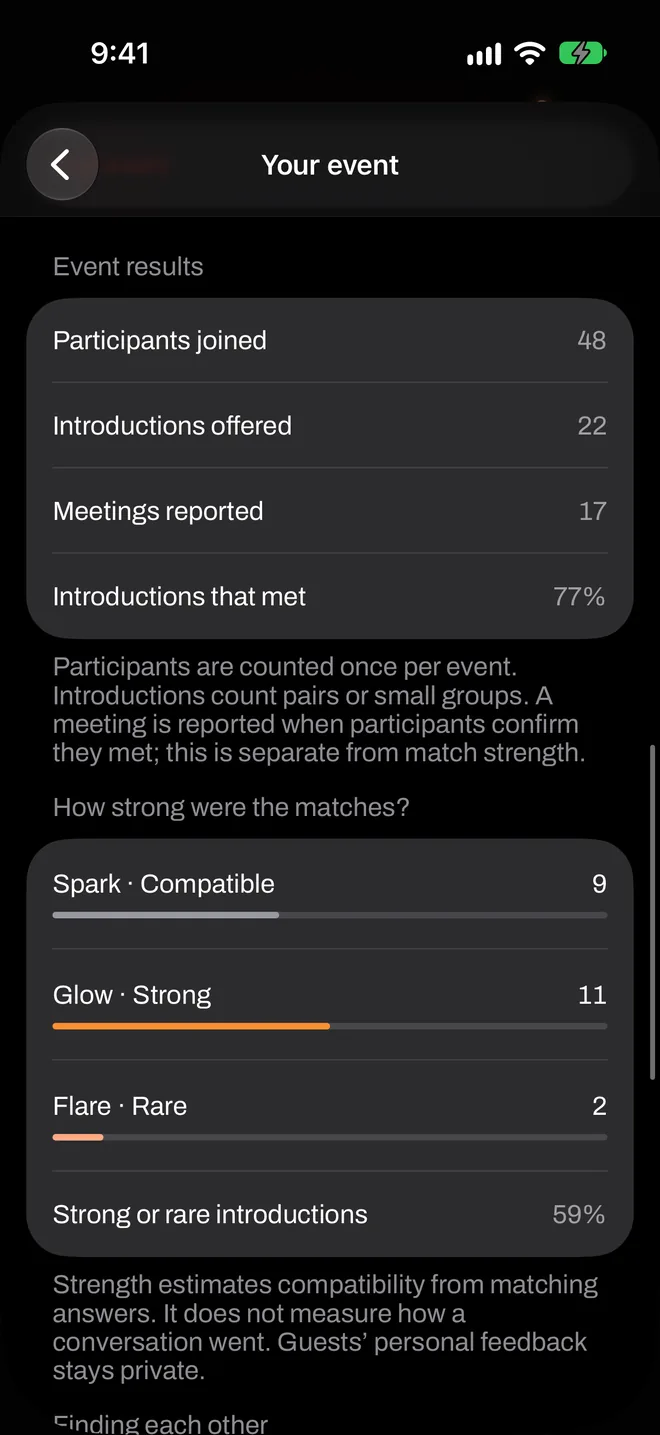
Tap End event when you’re done. Guests can’t rejoin afterward, and their answers are deleted. Your totals stay with the event. How to read them.
Hosting doesn’t put you in the matching. If you’d like an introduction at your own event, scan the code and join as a guest like everyone else.